Instructions
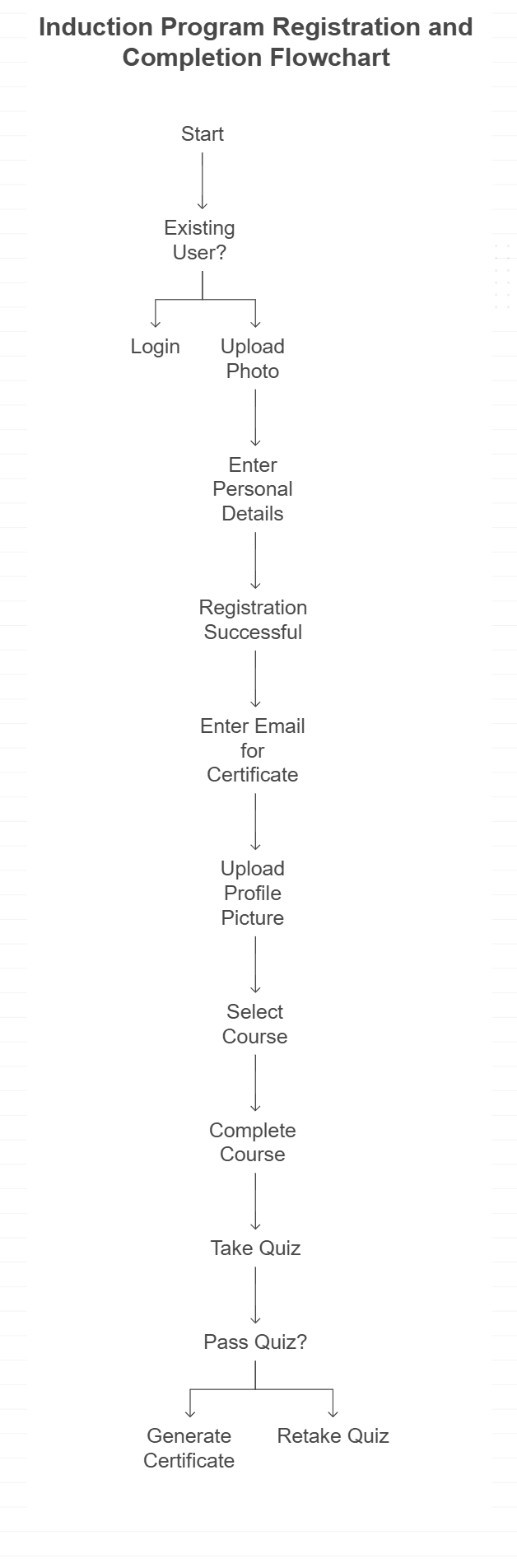
Note: If you are an “Existing user” and have “Login” credentials then follow Steps 1 and 2. Ignore Steps 3-4.
Step 1. To start the induction, you need to click on the INDUCTION button.
Step 2. Please enter your Email address and Password. The Cookie Policy, Privacy Policy, and Terms and Conditions are mandatory to proceed. Consent to have a photo taken during the induction is not mandatory but recommended as the client needs evidence that it is you who actually completed the course. The photos may be reviewed by the client and are automatically deleted a few days later unless there is an issue. Be sure not to include any personal data in the photo like family photos or children. Click the Login button as shown below.
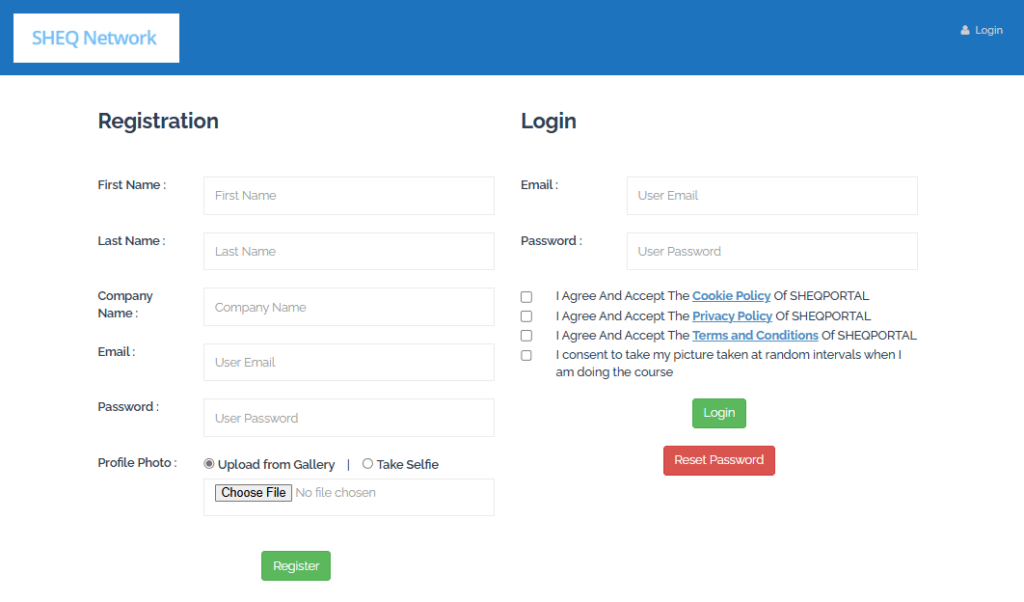
Step3- 4 are only applicable if you are registering as a new user of the System.
Step 3. Before you begin, please note that you will need to upload a photo into your profile section, please have one available on your device to select. If completing the induction on your smart device, you can take a picture and save it and upload this photo. Please also note there is a voice-over on each slide to help guide the learner, so headphones may be necessary.
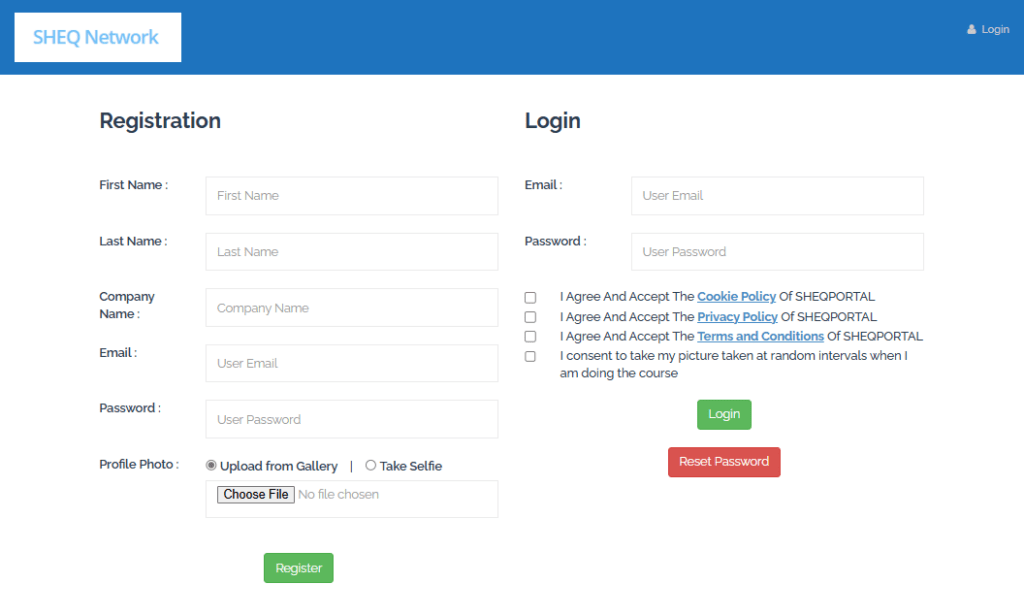
Step 4. Please enter your First Name, Last Name, Email address, and Password which will help you re-login to the site in case you are not able to complete the induction in one session and click the Registration button as shown below. The email must be unique. If you enter a false email, then you will not receive emails for the password reset options or a copy of the Cert of Completion at the end.
Upon successful registration, you will be redirected to the page below where you need to enter the email address(s) to whom you want your Certificate of Completion to be forwarded after the course is complete e.g., your own email, your supervisor, the person who looks after the Contractor Portal, etc. Enter an email address on the page below as highlighted and click on the update button.
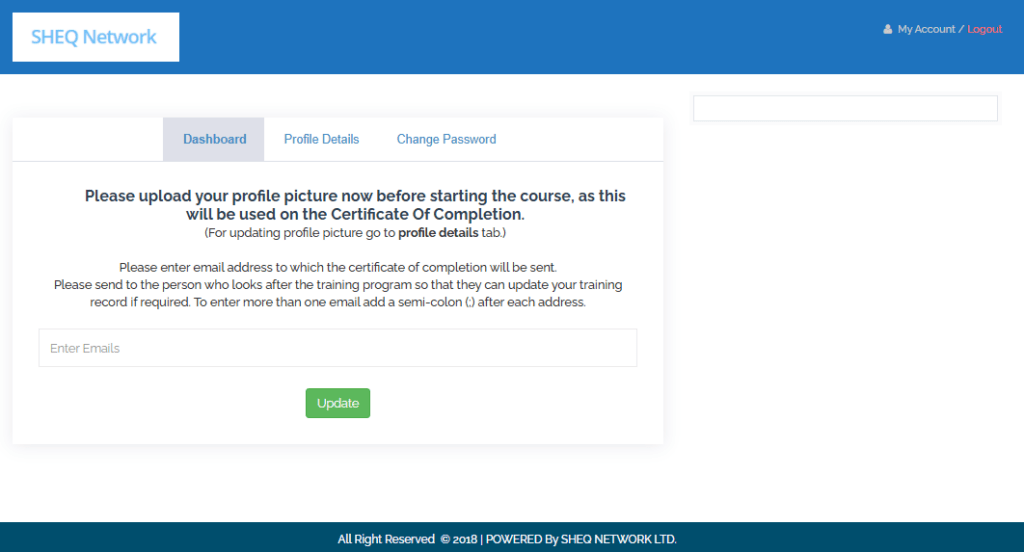
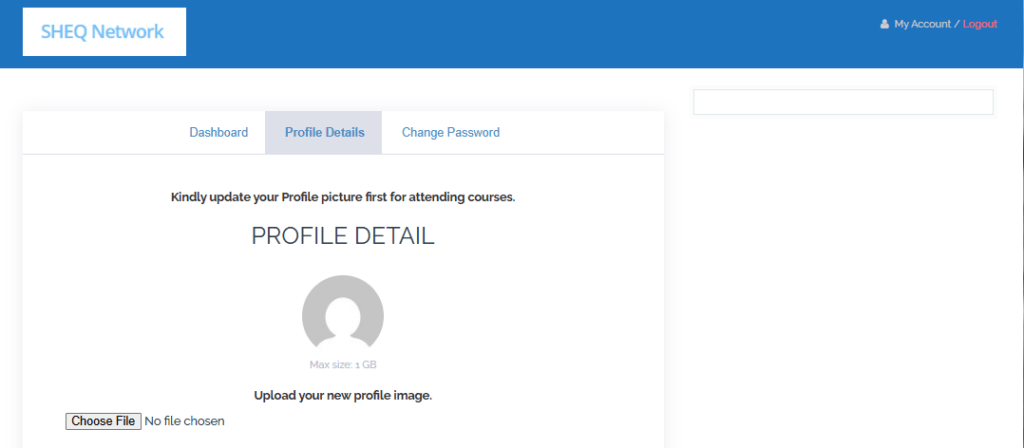
Once you have entered the email address(s), please go to the “Profile Details” section on the webpage. The website will ask you to upload a profile picture which is mandatory to proceed. Please make sure that you have a picture ready with you on your device, or you can take a picture with your mobile phone and upload it.
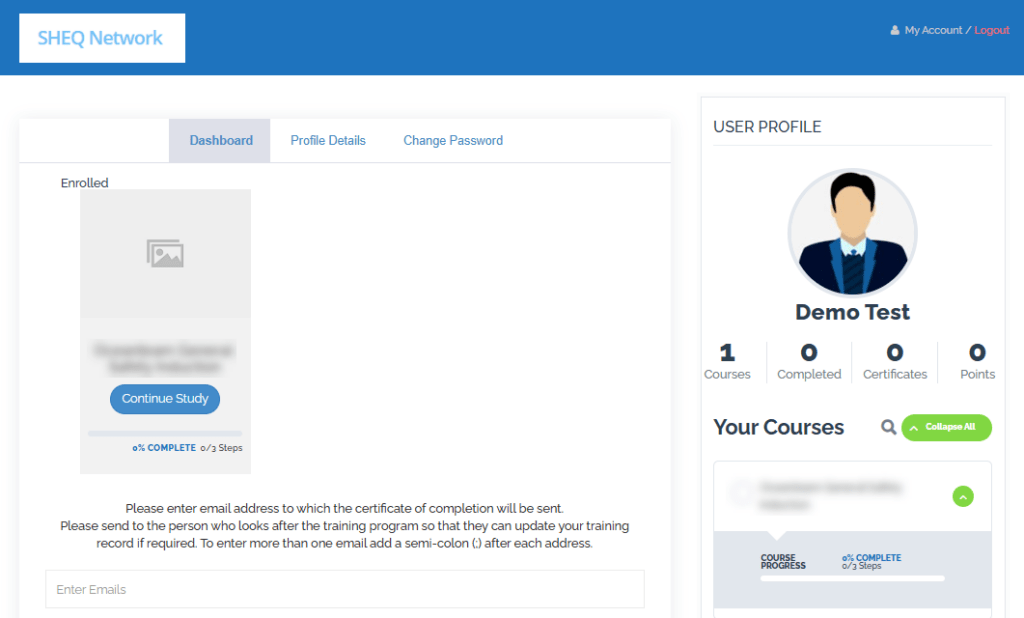
Step 5. Once saved you will be redirected to the page below where you will see the Course(s) which need to be completed. Please select the relevant course on the right side of the page or on the Dashboard page as shown in the below image.
NOTE: If you are an existing customer then you can view the previous courses that you have completed and also the updated course.
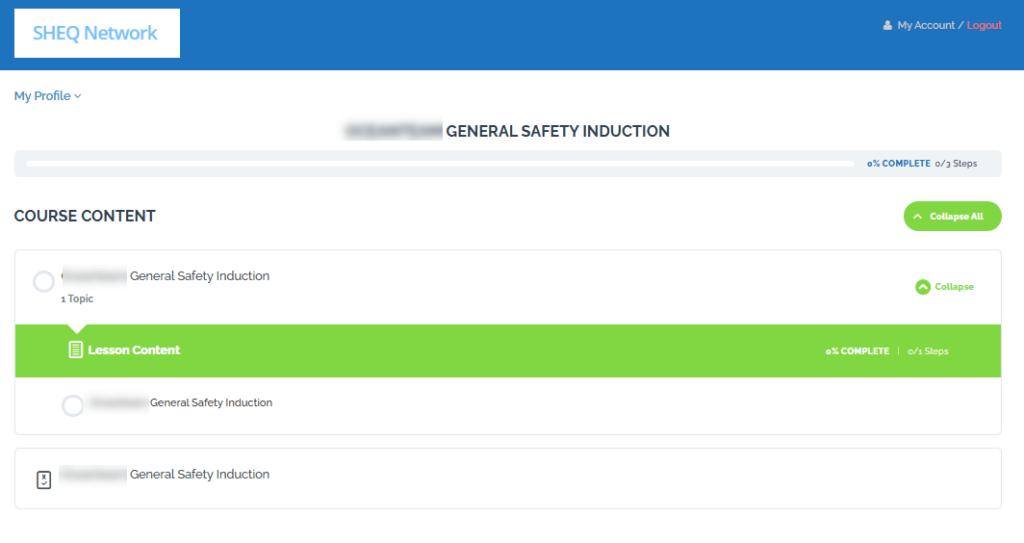
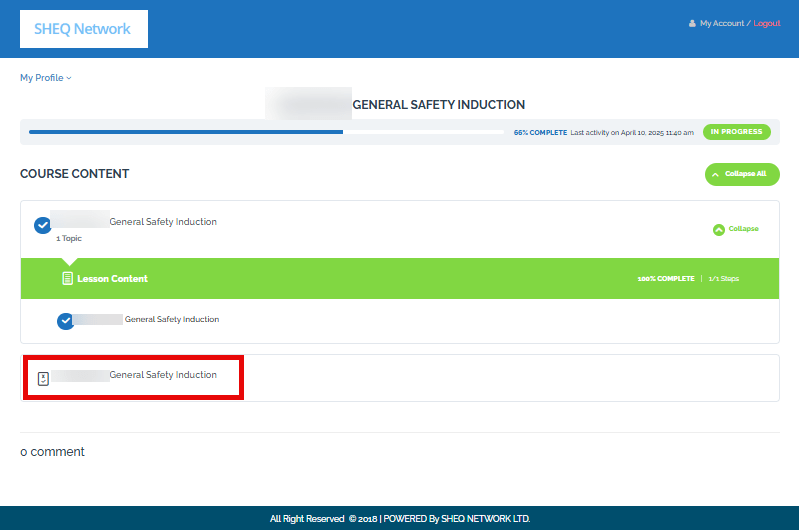
Upon clicking the relevant course, you will be redirected to the following screen. The first hyperlink with the circle next to it will take you to the Course, however, the second hyperlink will take you to the Quiz. Please proceed to the course by clicking on the encircled text.
Step 6. You can use the “PREV” (i.e., previous) and “NEXT” buttons at the bottom to navigate through the course topics as required.
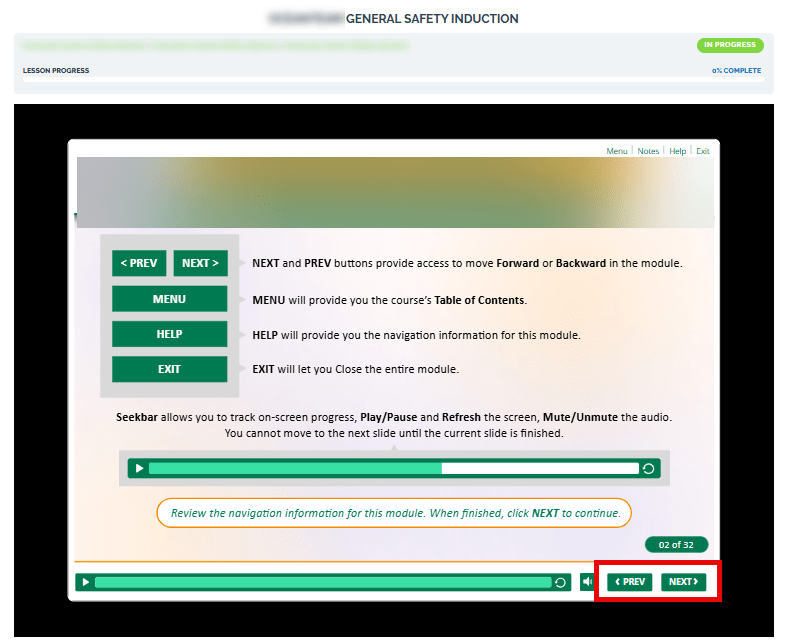
Step 7. Once you are finished with the slides, please click on the “Exit” button, and proceed to complete the QUIZ. If you want to revisit any of the previous slides, you can do so by opening the menu on the top left and going back to any of the specific slides you require.
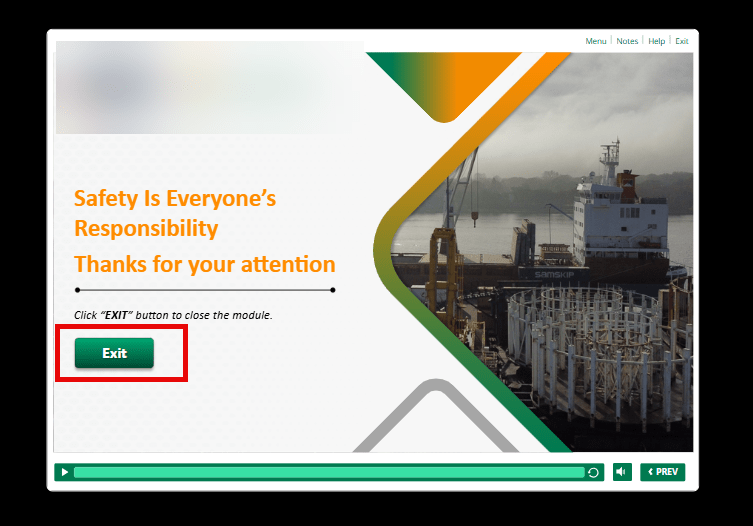
Step 8. When you click on exit, please choose the second point and it will take you to the Induction Program Quiz.
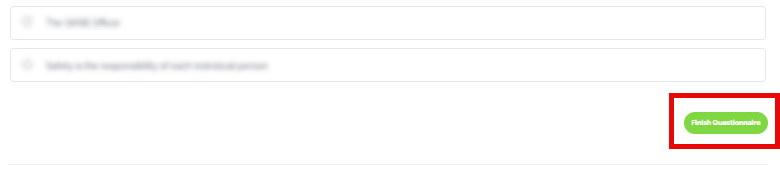
Step 9. When you have completed the Quiz, please click on the Finish Questionnaire button. When you have achieved the necessary Pass Mark your certificate of completion will be available.
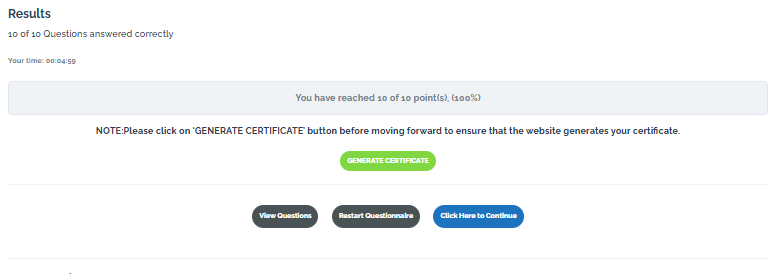
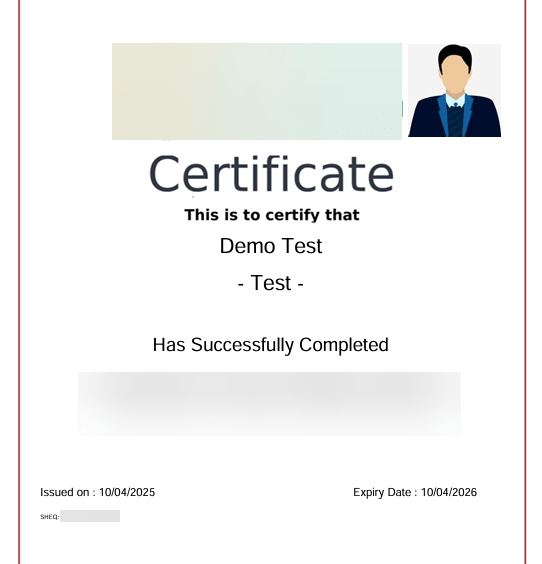
VERY IMPORTANT- YOU MUST SELECT GENERATE CERTIFICATE TO VERIFY THAT YOU HAVE A VALID CERTIFICATE OF COMPLETION. YOU MAY NEED TO BRING THE CERT WITH YOU TO THE CLIENT SITE (PRINTED OR A COPY ON YOUR PHONE). A COPY OF THE CERTIFICATE SHOULD ALSO BE UPLOADED ONTO THE mai™ CONTRACTOR PORTAL SO THAT CLIENT SECURITY PERSONNEL CAN REVIEW AND GRANT SITE ACCESS AS REQUIRED.